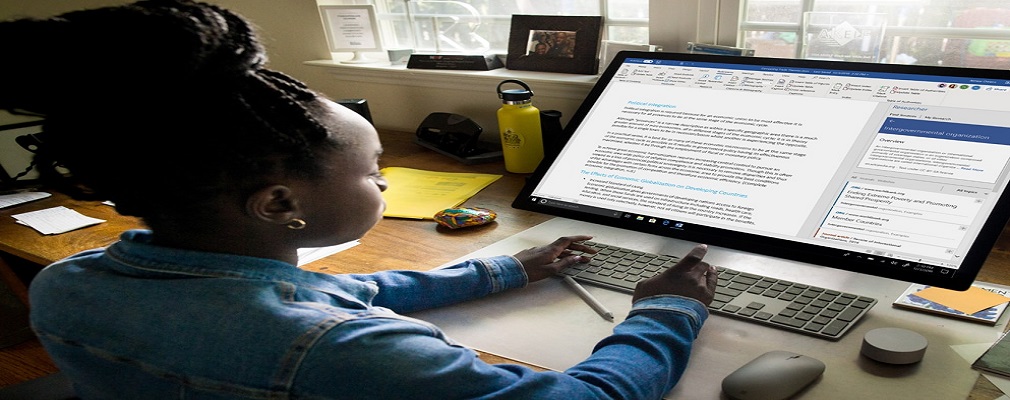
Small businesses typically use a computer for 8 or more hours each day. Each website that you visit typically has a composition of 100 or even thousands of files. Even websites that you visit which are professionally optimized, in order to display the content, the server still has to load many files.
The very first time you visit a website, the browser that you are using will save pieces of that website to your local computer. The reason for that is when you visit that website again, it will pull up the website much faster only loading the fresh files from the server. These files are called cached files that ultimately help reduce the load time.
Why should small businesses remove those saved files since they are helpful in loading web pages?
Quite often, web developers will make changes to their website while it is already published on the Internet. If you have old versions of cached files, your computer will continue to use those old versions. You won't see the new updated information from that website. In addition, you may also encounter browser errors like a runtime error, missing button on the page, or you’ll be unable to save content (just to name a few).
Deleting your cache and cookies in your favorite browser will help fix these potential issues.
How do I delete these files for my small business computer?
In Chrome:
On your computer, open Chrome.
At the top right of your screen, click on the 3 vertical dots
Click More Tools > Clear Browsing Data
At the top of that window, choose a time range. To delete everything on your computer, select all time.
Next to “cookies and other site data” and “cached images and files”, check the boxes.
Click clear data.
In Firefox:
On your computer, open Firefox.
Click on the View History icon in the top right (looks like 3 books standing on end with a book leaning at an angle)
Click on history
Click on Clear recent history
Select time range to clear: We recommend choosing “everything”
Check the boxes for “cookies” and “Cache”
Click on “Clear Now”
In Internet Explorer:
On your computer, open Internet Explorer
Click on the gearbox on the top right of your window
Select Tools > Safety > Delete browsing history
Only select Temporary Internet files AND Cookies and website data
Click delete